Fitbit SimpleSecretaryDual Operations
(last update 2025-12-26 Version x.3.17 [all models])
Install
Quick Guide
Configuring >Digital mode
select the desired time mode
Submit and sync
Or in the Fitbit App, App settings
NB. It is recommended to use 24 hr mode
for easier synchronicity with other times
which are always in 24 hr mode
select the desired "language by region/country"
Submit and sync
Or in the Fitbit App, App settings, Location
One format if country is US
another format for other countries
Battery [green, or low warning orange or red]
Steps [cyan]
Double tap top right value in Digital mode - it will flash
While flashing each tap will advance to the next value of the following items:
Floors [yellow]
Calories [turquoise]
Distance [orange]
Active Zone minutes [pink]
Additional language support
German - mehrsprachige deutsche Kurzdaten
Spanish - fechas abreviadas multilingües en español
French - dates multilingues français abrégées
Italian - italiano multilingue date abbreviate
Dutch - meertalige Nederlandse verkorte data
Norway - flerspråklige norske forkortede datoer
Swedish - flerspråkiga svenska förkortade datum
Switching to Digital view
To see the Digital view tap on the black Analog background just above 6 O'clock
Digital is the starting default view
The current view is remembered
when returning from another clock or app or watch restart.
Switching to Analog view
Tap on the Hour to see an Analog view and Stats with
any configured top right value can appear there too
The current view is remembered
when returning from another clock or app or watch restart.
Dual display Analog mode, with Digital Stats
Analog mode supports night hands between 20:00 and 07:00
Dual Analog mode
Configuring Dual Analog mode
whether display behaves with only Long look on watch wake or with Dual mode.
Double tap Steps position [between 4 & 5] to toggle
whether any stats show in Analog mode
Repeat double tap 12 o'clock position to toggle through the Analog insets
which can be changed to show
Double tap top or bottom inset to invert position, top with bottom
Double tap 6 o'clock position to toggle
between either Roman or Numerals clock view
double tap while colour is showing to change Analog and Digital.colours
[Stats, zones and night hands can't be changed]
Clock face zone customisation and display
NB. Only make changes to the Fitbit app, SimpleSecretaryDual Settings
when the watch is syncing properly.
By default no time zones are shown so must be added
to enable view and switching of time zones as follows:
To enable local time city display
in the Fitbit app, SimpleSecretaryDual Settings, add the first time zone.
The city will appear at the top of the display.
Any additional time zone entered can appear in the dual time zone.[below time]
To enable dual time zone switching on the clock face
at least 3 time zones must be entered
From 0 - 10 time zones can be saved in the Fitbit App, SimpleSecretaryDual Settings.
Adding more than 10 will only change the first one
By double tapping the dual time zone it will switch between the available time zones entered.
Dual time zones with a "+"after the time are currently in DST state
By double tapping the current city [at the top] it will switch with
the secondary.in the example below.
This feature also enables checking the date in other time zones
and DST* state in the local time zone
* About DST
Adjustments are implemented for all times zones
according to the currently defined rules for 2025-2040
If the rules change the DST may become inaccurate
for a few days during the change over or
until the next update for that country
Adjusting watch time
A special offset option in the Fitbit app, SimpleSecretaryDual Settings.is provided
for manually adjusting the displayed time .
It can be entered as any number of +/- seconds.
This allows to do things like:
keep your watch 5 minutes fast [by entering 300]
keep your watch 5 minutes slow[by entering -300]
keep your watch 30 minutes fast [by entering 1800]
keep your watch 1 hour fast [by entering 3600]
or to set any other form of correction.
This modification is purely for display purposes on this clock face,
it is independent of any time zones entered
it applies to main time only, not any dual time zones
Managing time zones
To enter a time zone, first select a Region, next the Country Code** and next the City
(Eg. Africa → EG → Cairo)
Then tap Add to the list
Nb. all dual time zones are displayed in 24 hr format without seconds
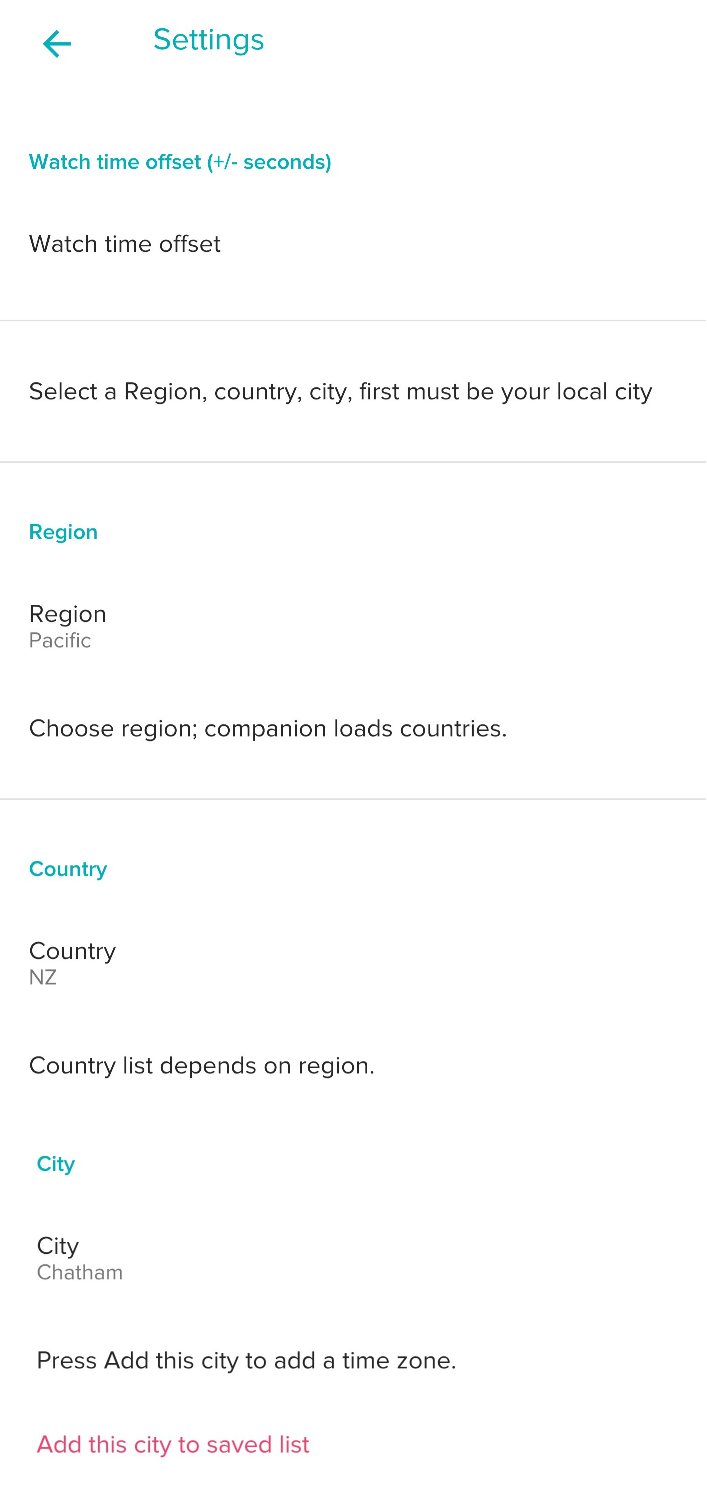
The City and displayed City [which appears on the watch] will be the same.
The displayed City can be changed to suit your preferred location
which can be a town, village, person, company or any text
Tine zones are added in order starting with the next available blank displayed City.
NB. It's good to plan the order of time zones before starting and a good idea when planning to travel
to enter your current home and travel time zone as an added time zone, why?
When travelling to a new time zone with home time zone, at the top,
and destination as dual time zone, at the bottom
on arrival double tap the home time zone and it will switch to
destination time zone with the home time zone as the dual one.
Various other scenarios are also possible to suit the needs.
To remove a city, delete the displayed City in the SimpleSecretaryDual Settings.
NB. Deleting the top time zone will turn off all time zones from displaying
until replaced by adding a new time zone
.
Deleting the current displayed dual time zone
will blank the dual zone display
switching to another dual time zone first avoids this
NB. Phone time and Fitbit App location must match
for the time zones to be displayed correctly.
This can be done automatically or manually in the
Fitbit App, App Settings, Time Zone setting
and phone time settings
If both are automatic then it will self adjust
when travelling and properly syncing
** Country Codes reference assistance
When selecting a time zone, the Country field uses ISO 3166-1 two-letter country codes
(e.g. GB, FR, EG, US).
If you are unsure of a country’s code, you can consult the following reference:
ISO 3166-1 country codes (alphabetical, multilingual * ):
https://en.wikipedia.org/wiki/ISO_3166-1 see paragraph "Codes"
Country names can be viewed in different languages using Wikipedia’s language selector.
to the right of "ISO 3166-1" at the top, in order to use familiar country names
For advanced users who want to understand how regions, countries, and cities map to time zones,
the official IANA Time Zone Database is available here:
https://data.iana.org/time-zones/tzdb/zone.tab
Restart & Versions
To see the version briefly
Switch to the Digital view [tap on the Analog background]
swipe the watch face to the left and click on Settings, then press the button
On Sense 2 or Versa 4
Switch to another clock face and back,
actioned with a long press on the display*
* on later firmwares
Note: regular updates may be necessary to reflect changes in DST patterns
should a particular country you are using get modified, it will need to be reloaded.
To do this remove that City from settings and
then add the country/City again to get it's new DST state.
Otherwise all countries will automatically adjust 15 minutes after the last display wake.
SimpleSecretaryDual releases
(V6- Sense 2, Versa 4)
(V5- Sense, Versa 3)
(V4- all original Versas)
Full date and Time display with Stats
Plus multiple World times
Dual time zone display
 |
|
Free Pro version of SimpleSecretary with additional features: + Multiple configurable time zones + Dual time zone display + DST display + Tactile feedback + Adjust displayed time advance/retard + Analog Night hands Digital watch configuration to: + Switch time zones + Switch base time zone + Adjust which Stats are shown Analog watch configuration to customise: + Colours + Watch face type + Insets display settings + Stats display style Fitbit App, SimpleSecretaryDual Settings to: + Select and add time zones + Modify time zone display names + Delete time zones + Adjust displayed time advance/retard |
Quick Guide
Configuring >Digital mode
-
12/24 hr mode - to change format,
select the desired time mode
Submit and sync
Or in the Fitbit App, App settings
NB. It is recommended to use 24 hr mode
for easier synchronicity with other times
which are always in 24 hr mode
-
2 different date formats can be seen based on country
select the desired "language by region/country"
Submit and sync
Or in the Fitbit App, App settings, Location
One format if country is US
another format for other countries
-
4 stats are shown, with 3 fixed stats and one configurable
-
The 3 fixed stats:
Battery [green, or low warning orange or red]
Steps [cyan]
-
The top right stats is configurable [by default is Floors]
Double tap top right value in Digital mode - it will flash
While flashing each tap will advance to the next value of the following items:
Floors [yellow]
Calories [turquoise]
Distance [orange]
Active Zone minutes [pink]
Additional language support
German - mehrsprachige deutsche Kurzdaten
Spanish - fechas abreviadas multilingües en español
French - dates multilingues français abrégées
Italian - italiano multilingue date abbreviate
Dutch - meertalige Nederlandse verkorte data
Norway - flerspråklige norske forkortede datoer
Swedish - flerspråkiga svenska förkortade datum
Switching to Digital view
To see the Digital view tap on the black Analog background just above 6 O'clock
Digital is the starting default view
The current view is remembered
when returning from another clock or app or watch restart.
Switching to Analog view
Tap on the Hour to see an Analog view and Stats with
any configured top right value can appear there too
The current view is remembered
when returning from another clock or app or watch restart.
Dual display Analog mode, with Digital Stats
Analog mode supports night hands between 20:00 and 07:00
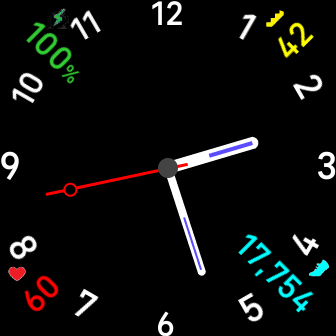
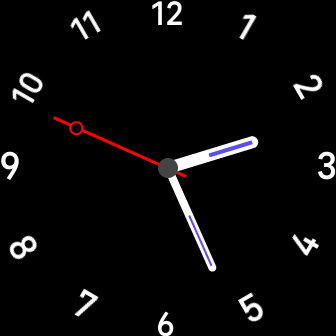
Long look mode
|
or no Stas mode |
Dual Analog mode
|
Quick look, just see the Time initially for simple time checking, followed by Long look, which shows Time and live stats of Heart rate, Steps, Battery and Floors [or alternate] Stats can be turned off completely Rewake [touch screen] within 3 seconds, the previous look is retained |
Configuring Dual Analog mode
whether display behaves with only Long look on watch wake or with Dual mode.
Double tap Steps position [between 4 & 5] to toggle
whether any stats show in Analog mode
Repeat double tap 12 o'clock position to toggle through the Analog insets
which can be changed to show
|
+ Day & date + Digital time + Both + Neither [default] |
Double tap top or bottom inset to invert position, top with bottom
Double tap 6 o'clock position to toggle
between either Roman or Numerals clock view
double tap while colour is showing to change Analog and Digital.colours
[Stats, zones and night hands can't be changed]
Clock face zone customisation and display
NB. Only make changes to the Fitbit app, SimpleSecretaryDual Settings
when the watch is syncing properly.
By default no time zones are shown so must be added
to enable view and switching of time zones as follows:
To enable local time city display
in the Fitbit app, SimpleSecretaryDual Settings, add the first time zone.
The city will appear at the top of the display.
Any additional time zone entered can appear in the dual time zone.[below time]
To enable dual time zone switching on the clock face
at least 3 time zones must be entered
From 0 - 10 time zones can be saved in the Fitbit App, SimpleSecretaryDual Settings.
Adding more than 10 will only change the first one
By double tapping the dual time zone it will switch between the available time zones entered.
Dual time zones with a "+"after the time are currently in DST state
By double tapping the current city [at the top] it will switch with
the secondary.in the example below.
This feature also enables checking the date in other time zones
and DST* state in the local time zone
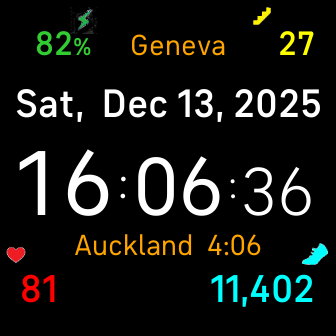
Standard local time
Shows date in local time zone |
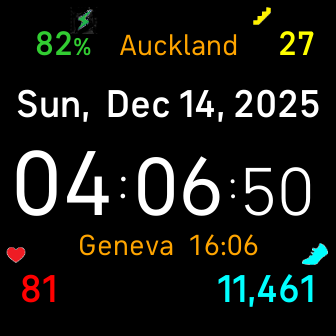
Inverted to alternative time
Shows date in other time zone |
* About DST
Adjustments are implemented for all times zones
according to the currently defined rules for 2025-2040
If the rules change the DST may become inaccurate
for a few days during the change over or
until the next update for that country
Adjusting watch time
A special offset option in the Fitbit app, SimpleSecretaryDual Settings.is provided
for manually adjusting the displayed time .
It can be entered as any number of +/- seconds.
This allows to do things like:
keep your watch 5 minutes fast [by entering 300]
keep your watch 5 minutes slow[by entering -300]
keep your watch 30 minutes fast [by entering 1800]
keep your watch 1 hour fast [by entering 3600]
or to set any other form of correction.
This modification is purely for display purposes on this clock face,
it is independent of any time zones entered
it applies to main time only, not any dual time zones
Managing time zones
To enter a time zone, first select a Region, next the Country Code** and next the City
(Eg. Africa → EG → Cairo)
Then tap Add to the list
Nb. all dual time zones are displayed in 24 hr format without seconds
The City and displayed City [which appears on the watch] will be the same.
which can be a town, village, person, company or any text
Tine zones are added in order starting with the next available blank displayed City.
NB. It's good to plan the order of time zones before starting and a good idea when planning to travel
to enter your current home and travel time zone as an added time zone, why?
When travelling to a new time zone with home time zone, at the top,
and destination as dual time zone, at the bottom
on arrival double tap the home time zone and it will switch to
destination time zone with the home time zone as the dual one.
Various other scenarios are also possible to suit the needs.
To remove a city, delete the displayed City in the SimpleSecretaryDual Settings.
NB. Deleting the top time zone will turn off all time zones from displaying
until replaced by adding a new time zone
.
Deleting the current displayed dual time zone
will blank the dual zone display
switching to another dual time zone first avoids this
NB. Phone time and Fitbit App location must match
for the time zones to be displayed correctly.
This can be done automatically or manually in the
Fitbit App, App Settings, Time Zone setting
and phone time settings
If both are automatic then it will self adjust
when travelling and properly syncing
** Country Codes reference assistance
When selecting a time zone, the Country field uses ISO 3166-1 two-letter country codes
(e.g. GB, FR, EG, US).
If you are unsure of a country’s code, you can consult the following reference:
ISO 3166-1 country codes (alphabetical, multilingual * ):
https://en.wikipedia.org/wiki/ISO_3166-1 see paragraph "Codes"
Country names can be viewed in different languages using Wikipedia’s language selector.
to the right of "ISO 3166-1" at the top, in order to use familiar country names
For advanced users who want to understand how regions, countries, and cities map to time zones,
the official IANA Time Zone Database is available here:
https://data.iana.org/time-zones/tzdb/zone.tab
Restart & Versions
To see the version briefly
Switch to the Digital view [tap on the Analog background]
swipe the watch face to the left and click on Settings, then press the button
On Sense 2 or Versa 4
Switch to another clock face and back,
actioned with a long press on the display*
* on later firmwares
Note: regular updates may be necessary to reflect changes in DST patterns
should a particular country you are using get modified, it will need to be reloaded.
To do this remove that City from settings and
then add the country/City again to get it's new DST state.
Otherwise all countries will automatically adjust 15 minutes after the last display wake.
SimpleSecretaryDual releases
(V6- Sense 2, Versa 4)
(V5- Sense, Versa 3)
(V4- all original Versas)
Vx.3.19 - 2026-03-30
- DST correction for all countries
- DST change discontinued for Iran
Vx.3.17 - 2025-12-26
Vx.3.11 - 2025-12-20
- dual Analog insets added [any combination of day/date and time]
- Adjustable colours
- Roman/Numerals added
- Analog Stats disable/enable added
- improved double tap customiseation
Vx.3.10 - 2025-12-18
- new release for all watches