SunPanels
Keeps track of the sun position in real time
and it's affects on any objects
with simulation features
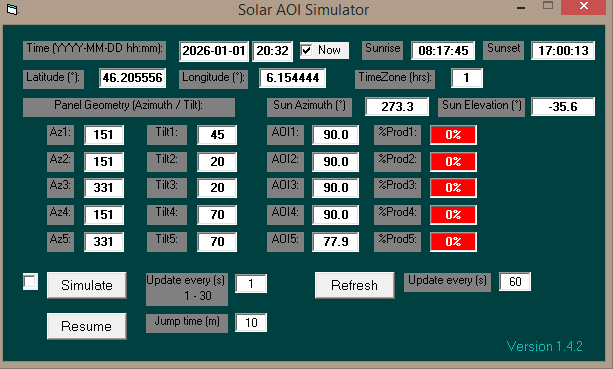
SunPanels features
(standalone Windows program, no installation required)
Automation
By default it can show sun details per minute and optionally create an automation file for use by other systems
Simulation [Angle of Incidence]
It will show Angle of Incidence of sun's rays with an estimated production* on any panel orientation over time, the speed can be adjusted, the data can be logged for analysis
for the sun only
and/or per panel
and can be paused
Usage
Planning and analysis
Monitoring
Logging
Conditions
* % production can only be a rough estimate even though the Angle of Incidence is accurate it can differ from the actual result for all sorts of reasons:
(standalone Windows program, no installation required)
Automation
By default it can show sun details per minute and optionally create an automation file for use by other systems
Simulation [Angle of Incidence]
It will show Angle of Incidence of sun's rays with an estimated production* on any panel orientation over time, the speed can be adjusted, the data can be logged for analysis
for the sun only
and/or per panel
and can be paused
Usage
Planning and analysis
Monitoring
Logging
Conditions
* % production can only be a rough estimate even though the Angle of Incidence is accurate it can differ from the actual result for all sorts of reasons:
|
Direct sunlight Celestial sun Clouded sun Atmospheric conditions Shading Radiance Sun strength (time of year) (time of day) Panel type Panel age Panel mounting Panel cleanliness Heating/cooling Humidity (all sorts) Orientation issues Inverter/optimiser issues Location accuracy etc. |
Sun data accuracy to < 0.5 degrees only
Overview and instructions
The program supports up to 5 panels with different orientations and inclinations.
Optionally use the "sunpanels.ini" file with up to the following 7 lines in it
|
latitude longitude 151/45 151/45 151/45 151/45 151/45 |
Replace latitude & longitude with yours in decimal format
EG. 46.205556, 6.154444 instead of
46° 12' 20" N, 6° 9' 16" E
This is for the Pierres du Niton, in Geneva which is the reference for Swiss map heights, at 373.6 metres above sea level.
If this file is present it will populate the fields in the program at start and if not, it will use the defaults
If you don't want to create an ini you can enter the values on the form [but you will need to do it each time]
Values can always be entered/changed once the program is started
151/45 means a panel facing 151 from north and inclined at 45 degrees [None, one or more can be entered]
The checkbox "Now" is ticked, by default, it will auto refresh on the change of minute with a 60 second default rate.
The rate to the right of the REFRESH button can be changed [Max 60] in which case it will just refresh after those seconds with no on minute boundary
Pressing the REFRESH button does an immediate calculate
If checkbox "Now" is not ticked, the REFRESH button becomes a simple CALCULATE button.
The CALCULATE button loads sun details based on the current date & time shown
The SIMULATE button will advance the date and time by the number of minutes specified and frequency given to the right of the button
The RESUME/PAUSE button can do that, to hold a particular value or change parameters like start date or time.
When SIMULATE process reaches end of a day, it starts the next day within the sunrise and sunset times.
The fields AOI [Angle of Incidence] are only of use between 0 [sun perpendicular to the panel] 90 [sun on the horizontal panel edge] with no coverage
The prod fields give expected production, [0-100% is valid] it is only an approximation, too many issues can affect actuals results.
During Simulation time offset from UTC must be handled manually when the date changes into or out of Daylight savings, otherwise the values are correct but the hour can be wrong.
Program uses your current DST/Time zone setting at start, not necessarily that of the location specified
For logging a year's activity the best option is to start with a DST time change date till the next time change do 2 simulations with DST set correctly.
If logging [tick box] is selected, solar information is logged, optionally also panel information can be logged.It is recommended that a "jump time" of at least 60 minutes be used to minimise the data being recorded.
Entering a time or date and pressing enter will do an immediate calculate [if the data is valid]
The simulate update time is, normally 1-30 seconds, but sub second is possible, 0.01 it will update every 1/100th of a second [minimum .001].
This is useful if logging a lot of data [eg. every 10 minutes for a year]
Automation concept
To enable this feature execute the program, via command line or shortcut with a parameter
eg. sunpanels.exe E:\Sunpostion.txt
A status file is written every refresh cycle [but not when Simulation is active].
If the path is invalid it will not be written.
EG. 46.205556, 6.154444 instead of
46° 12' 20" N, 6° 9' 16" E
This is for the Pierres du Niton, in Geneva which is the reference for Swiss map heights, at 373.6 metres above sea level.
If this file is present it will populate the fields in the program at start and if not, it will use the defaults
If you don't want to create an ini you can enter the values on the form [but you will need to do it each time]
Values can always be entered/changed once the program is started
151/45 means a panel facing 151 from north and inclined at 45 degrees [None, one or more can be entered]
The checkbox "Now" is ticked, by default, it will auto refresh on the change of minute with a 60 second default rate.
The rate to the right of the REFRESH button can be changed [Max 60] in which case it will just refresh after those seconds with no on minute boundary
Pressing the REFRESH button does an immediate calculate
If checkbox "Now" is not ticked, the REFRESH button becomes a simple CALCULATE button.
The CALCULATE button loads sun details based on the current date & time shown
The SIMULATE button will advance the date and time by the number of minutes specified and frequency given to the right of the button
The RESUME/PAUSE button can do that, to hold a particular value or change parameters like start date or time.
When SIMULATE process reaches end of a day, it starts the next day within the sunrise and sunset times.
The fields AOI [Angle of Incidence] are only of use between 0 [sun perpendicular to the panel] 90 [sun on the horizontal panel edge] with no coverage
The prod fields give expected production, [0-100% is valid] it is only an approximation, too many issues can affect actuals results.
During Simulation time offset from UTC must be handled manually when the date changes into or out of Daylight savings, otherwise the values are correct but the hour can be wrong.
Program uses your current DST/Time zone setting at start, not necessarily that of the location specified
For logging a year's activity the best option is to start with a DST time change date till the next time change do 2 simulations with DST set correctly.
If logging [tick box] is selected, solar information is logged, optionally also panel information can be logged.It is recommended that a "jump time" of at least 60 minutes be used to minimise the data being recorded.
Entering a time or date and pressing enter will do an immediate calculate [if the data is valid]
The simulate update time is, normally 1-30 seconds, but sub second is possible, 0.01 it will update every 1/100th of a second [minimum .001].
This is useful if logging a lot of data [eg. every 10 minutes for a year]
Automation concept
To enable this feature execute the program, via command line or shortcut with a parameter
eg. sunpanels.exe E:\Sunpostion.txt
A status file is written every refresh cycle [but not when Simulation is active].
If the path is invalid it will not be written.
|
The file contains :
DateTime Azimuth Elevation Sunrise Sunset
and looks like this:
2025-12-31 15:26 201.0 14.8 08:19:17 16:58:21 |
Other programs can then access this information any time.
Without the parameter no automation file is written.
Understanding inclination concept
Inclinations angles are measured from the horizontal in the northern hemisphere
with the edge nearest the sun being lowered by the number of degrees on the south side
with the edge furthest from the sun being lowered by the number of degrees on the north side
All angles are standard compass bearings looking in that direction
North = 0
East = 90
South = 180
West = 270
Without the parameter no automation file is written.
Understanding inclination concept
Inclinations angles are measured from the horizontal in the northern hemisphere
with the edge nearest the sun being lowered by the number of degrees on the south side
with the edge furthest from the sun being lowered by the number of degrees on the north side
All angles are standard compass bearings looking in that direction
North = 0
East = 90
South = 180
West = 270
Releases for Windows
V1.4.2 - 2026-01-02
+ Added automation support, with a sun state file
+ Improved error handling
+ Improved display
+ Improved accuracy
+ Improved timing at start
V1.3.1 - 2025-11-18
+ Improved timing on repeat
+ Improved layout
+ add manual date/ calculate
V1.3.1 - 2025-09-14
+ Improved timing at start
+ add local DST automatically at start
V1.2.2 - 2025-07-27
+ Initial release
Latest Download version
After download, right click properties and unblock the file before opening unzip the file and run the program
+ Added automation support, with a sun state file
+ Improved error handling
+ Improved display
+ Improved accuracy
+ Improved timing at start
V1.3.1 - 2025-11-18
+ Improved timing on repeat
+ Improved layout
+ add manual date/ calculate
V1.3.1 - 2025-09-14
+ Improved timing at start
+ add local DST automatically at start
V1.2.2 - 2025-07-27
+ Initial release
Latest Download version
After download, right click properties and unblock the file before opening unzip the file and run the program